Posts

Special Characters in Google Docs
Image
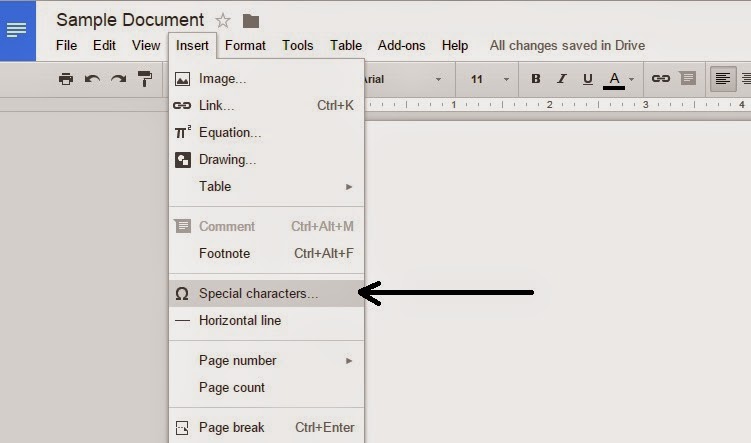
One of the neat features in Google Docs I recently ran across involves entering in special characters. I was drawing up a table and I specifically wanted a check mark in one of my columns. I knew the location of where to insert the special characters, but also uncovered a very useful tool in the process. If you are in Google Docs, click Insert, then Special Characters in the drop down menu. The following window opens up. Over on the right side, you see an area that says Draw a symbol here. With your mouse, draw the desired symbol. After you draw the symbol, you will notice that your desired symbol should appear in the search results on the left. Click the symbol and it will appear on your document.  Try another one. In my opinion, not only is it useful, but it is pretty fun as well. Just another tool to be aware of as we further expand into our use of Google.

Google Apps Updates - Drive for Education

A couple of days ago, Google announced Drive for Education. While this does not seem like a landmark announcement, the biggest piece of news was the following: Unlimited storage : Store as many Google Drive files, Gmail messages, and Google+ photos as you need. Individual file sizes up to 5TB will be supported. Google currently offers our staff and students 30GB of storage per account. The move to unlimited is an even greater step in making sure everything is backed up and accessible online, as well as further helping the idea of going paperless. There is no timetable for when our accounts will have unlimited space, but it is coming. Another key part of the announcement was the offering of Google Vault for free . This is the archiving service that is offered to retain data for our district. Since 2009, we have paid for data archival, so this will result in savings of about $3,500 per year. It appears that this will begin for us January 2015. The final feature that w...

Government urges to stop using Internet Explorer

Image
With the recent news that the Federal Government is urging users to switch browsers and stop using Internet Explorer (the blue "e"), now is the perfect time for you to start using Google Chrome. Using Google Chrome has several benefits including: Security - Chrome has built-in malware protection and it updates automatically Speed - It is the fastest browser in regards to startup and downloading Signing In - Your bookmarks, history and all other settings are accessible across any device. (This allows you to use your smart phone to access your current tabs that are open on your work computer.) Extensions - There are several very useful Chrome extensions available in the Chrome Webstore. Here are a few links with some more detailed information: Why use Google Chrome? Governments urge Internet Explorer users to switch browsers

Direct Links and Short Links

For quite some time now, we've had fairly simple direct links to our websites. The following is a list for reference. Massac Unit School District #1 - massac.org or unit1.massac.org Massac County High School - mchs.massac.org Massac Junior High School - mjhs.massac.org Metropolis Elementary School - mes.massac.org Brookport Elementary School - brookport.massac.org Jefferson Elementary School - jefferson.massac.org Franklin Elementary School - franklin.massac.org Unity Elementary School - unity.massac.org Metropolis Primary School - primary.massac.org Massac Technology - tech.massac.org Massac Food Service - foodservice.massac.org Massac Forms - forms.massac.org There are some others as well, but I thought it would be helpful to list these here. We also have the ability to create short links for websites using our domain name. An example of this is with InformationNOW. The actual website for our InformationNOW is:  https://516471.stiinformationnow.com/InformationNo...

Images in Google Forms

Image
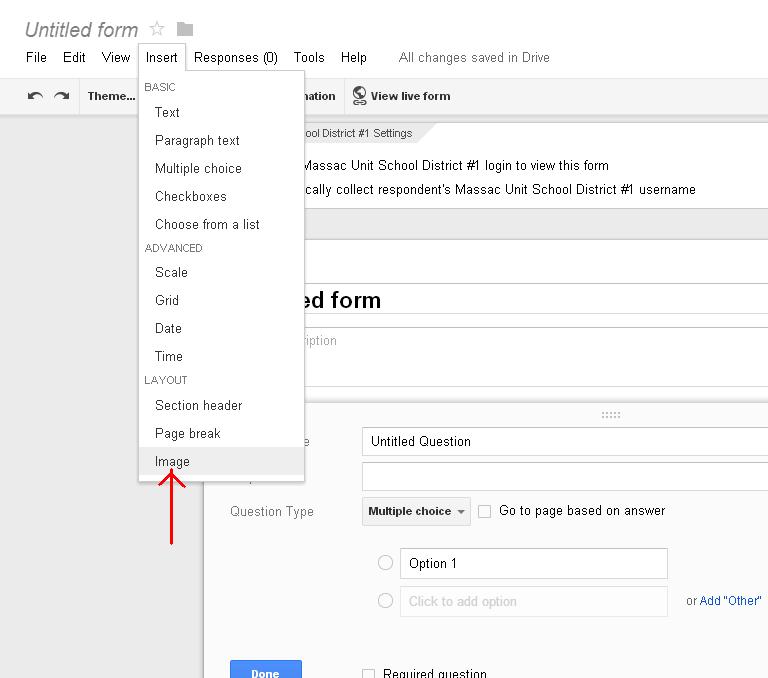
Although it was already available with a little hardwork and scripting, now it is very easy to add an image to a Google Form. Once you are in the creation window of a Google Form, click Insert. At the very bottom of the dropdown you will see Image. (see picture below) Click Image to bring up the window that allows you to insert your desired picture, clipart, etc... This could be very handy in creating different assignments, assessments, or just unique surveys.

Google Search Calculator / Desmos Graphing Calculator

Image
One of the fun little tricks that Google Search can be used for is math. If you type a math problem into Google (i.e. 2+2), the following result is this screen: The Google Search calculator can be quite handy if you are in a pinch to do some number crunching. For a little more robust tool that has graphing capabilities, try Desmos Graphing Calculator . Desmos allows you to save, share, and print your graphs, as well as link to your Google Account. Best of all, both of these methods are free!

WeVideo

Image
     One of the great online video creation tools I have come across is WeVideo ( http://www.wevideo.com/ ). WeVideo strives to make sure video creation is available for everyone. The interface ranges from being suitable for a novice to experienced editors. There are a variety of editing modes including storyboard, timeline, and advanced. There are also many themes to choose from. WeVideo is browser based, but also works on some mobile devices. This is free, but there are paid options available as well. WeVideo is certainly worth checking out if you are interested in any aspect of video creation.