Posts

ClassroomQ

Image
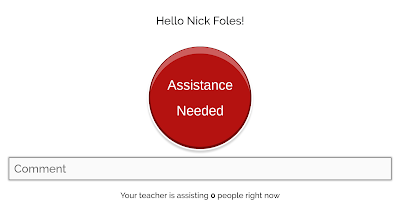
When students need assistance in the classroom, it can be one of the trickier things to manage. A student may need help, but not want to draw attention to themselves by raising a hand or speaking in front of their peers. If you happen to be in a lab setting or using devices in the classroom, this website could be an option to reach more students. ClassroomQ ( https://classroomq.com ) offers students the opportunity to ask for assistance by hitting a button on a website. The three steps in the process are: 1) Teachers hit the start button to start a session and get a class code. 2) Students enter their name and their teacher’s class code. 3) When students need help, they simply click the button to add their name to the queue. Student View (prior to hitting the button) I signed up and played around with the free account. It is simple, yet neat. Students also have the option to type a comment before clicking the assistance button. ClassroomQ lists the students in order of w...

Google Updates

Image
There have been some nice updates with Google Sheets and the new Google Sites so far this month. First, you can now record macros and create 3D charts in Google Sheets. There are also new ways to print, group, and analyze your data. More on this can be found at:  https://www.blog.google/products/g-suite/think-macro-record-actions-google-sheets-skip-repetitive-work/ In the new Google Sites, it is now possible to add custom links in the navigation bar. Previously, you could only link pages within the same site. This means you can now have a link for a different website that you want visitors to access within your site's navigation. More on this can be found at:  https://gsuiteupdates.googleblog.com/2018/04/custom-navigation-links-new-sites.html Lastly, I received an email from Google a few days ago that stated our web based email interface (Gmail) is getting updated. The last major update it received was in 2011, so it is definitely time for it, in terms of ho...

Massac Unit #1 Blog | STEM Activities: From Building Code to Building Bridges and Everything in Between

Check out the latest post from the  Massac Unit #1 blog . It's the January Spotlight titled "STEM Activities: From Building Code to Building Bridges and Everything in Between."

Loom!

Image
Click. Record. Share. These three words are the backbone of  Loom . Loom is a free screen and video recorder that is available as an extension for the Google Chrome browser. I've used Loom (formerly Opentest) for over a year now. It has been, hands down, the easiest and best screen capturing tool that I've ever used. In the past year, I've been able to do recordings using Loom to help facilitate our online professional development offerings, provide better "over email" tech assistance, and start building a repository of how-to videos. On top of that, it is lightning quick. It truly has been a time saver. If you are looking for a quick and easy (and free!) screen and video recorder, check out Loom !

Embedding HTML and JavaScript in new Google Sites

One of the exciting features recently released in the new Google Sites is the ability to embed HTML and JavaScript. It not only adds an additional feature, but is especially handy for those who like to tinker with the code. In the short time that I've gotten to work with it, I've already been able to embed our Semester Grade Calculator  (something I was never able to get to complete functionality with classic Google Sites) on our high school site. I've also started reworking the staff directories on our websites with this new ability ( https://mjhs.massac.org/staff-directory ). There really are a myriad of possibilities with this. While a working knowledge of HTML and JavaScript is certainly helpful, just remember...Google is your friend :) An additional resource for learning HTML/JavaScript (and more) is one of my go-to sites for web building assistance:  https://www.w3schools.com/ . Additional information can be found on the official G Suite Updates Blog at:  http...

Massac Unit #1 Blog: Forging Ahead in an Online Learning Environment

Check out the latest post from the Massac Unit #1 blog . It's the October Spotlight titled "Forging Ahead in an Online Learning Environment."

Text Rotation in Google Sheets

Image
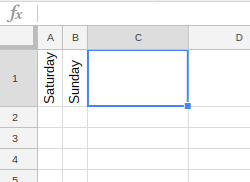
Google Sheets continues to receive new functionality. Recently, text rotation was added for our accounts. Text can be tilted, rotated, or stacked. It can also be set at a custom angle. Here's an example of what it looks like: To try out this feature, type some text in a cell, then click the Text Rotation button in the Sheets toolbar. Alternatively, you can also select Format, then Text Rotation in the drop down menu. Enjoy!

File Upload in Google Forms

Google Forms continues to grow and add features. One of the longest awaited features is en route. "Also debuting today is a top-requested feature from our business and education customers — the new “File upload” question type. Your respondents can now upload files from their computer or Drive — all of which are neatly collected for you in a new Drive folder.  Note: This feature is only available for G Suite customers in Forms shared within their organization." -  https://www.blog.google/products/g-suite/five-new-ways-reach-your-goals-faster-g-suite/ Personally, I have waited for this one a long time. I'm excited to test it out with our Trouble Ticket when we get access to it. This way if you have a tech issue/question, you can submit a picture or file that may help provide better detail.

Inbox by Gmail

Image
Our Massac accounts now have access to Inbox by Gmail. Think of it as a different approach to email. Our traditional Gmail is not going anywhere, this is just another way of looking at it. An interesting feature is the ability to check out pictures or shipping status without opening the message. There is a built-in reminder function. You can also snooze messages to a certain point in time, which essentially puts them away until you are ready for it. There is an Inbox app available on the Google Play Store  and on the Apple App Store . You can also visit inbox.google.com to check out Inbox by Gmail.

Vacation Responder in Gmail

Image
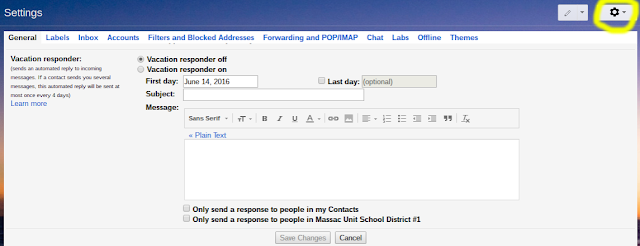
Heading out of town? While it isn't a new feature, it is worth mentioning for the summer. Gmail has a vacation response section included in the Settings. While in your email, click the Settings gear. Scroll all the way to the bottom and you will see the Vacation responder section. There are a few settings to play with. Timing, who to send the message to, and the message itself. In any event, if you are going to be somewhere where access is limited or you are just unavailable for a day or a week, the vacation responder may come in handy.

Android Apps coming to Chrome OS

Image
As has previously been speculated, the official Google Chrome Blog had a post yesterday  detailing the arrival of Android Apps to Chrome OS (Chromebooks and the like). The first devices will see the arrival of the Google Play Store in mid-June, while others will follow suit later in 2016. Based on looking at the list of supported devices they currently have, it appears that a portion of our current Chrome devices will indeed support Android Apps. I would imagine that most new Chromebooks from here on out will also have support for this. This is definitely exciting news and it opens up a segment of applications not previously available to use.

Search Options in Gmail

Image
One of the powerful features of Gmail is the ability to search your messages. Even better is that you can be as concise or expansive with the search as you'd like. The search bar is conveniently located at the top of your inbox. If you click the down arrow in the search bar, you'll see that it expands to give you more options. You can search by time, subject, emails with attachments, or a number of other things. In that expanded box, you'll also see the link for creating a filter with the search that you are doing. There are even advanced search operators or query words that can be used in the search bar. If you are looking for that elusive email from 7 years ago, the search bar may do the trick!

Get them moving! Try a new technique

This time of the year (well, any time, actually) kids get a little squirrel-like.  They sometimes need a little active time in the day.  These are some activities that are adaptable to any level that gets the kinesthetic learner up and moving! A review game:   http://toengagethemall.blogspot.com/2013/02/grudgeball-review-game-where-kids-attack.html?m=0 Some flashcard games:   http://www.eslkidstuff.com/flashcardgamescontent.htm#.Vxof4tQgu1t activites:   http://learningabledkids.com/multi_sensory_training/page25-tactile2.htm

Rubric Help

There are many options for creating rubrics for your classroom, so why reinvent the wheel?  If you need inspiration for verbiage to use or if you have no idea where to start, get on over to Rubistar.   http://rubistar.4teachers.org/index.php Orange Slice is a Google extension which can help you create and then apply rubrics. https://chrome.google.com/webstore/detail/orangeslice-teacher-rubri/hfbffoacepkeklpippgijnoemfmiondo?hl=en-US Take it a step further. Create a rubric in Google Forms that grades itself and calculates the score on the scale you want. http://www.curbyalexander.net/2016/03/create-a-self-grading-weighted-rubric-with-google-forms/

Chrome's Data Saver

Image
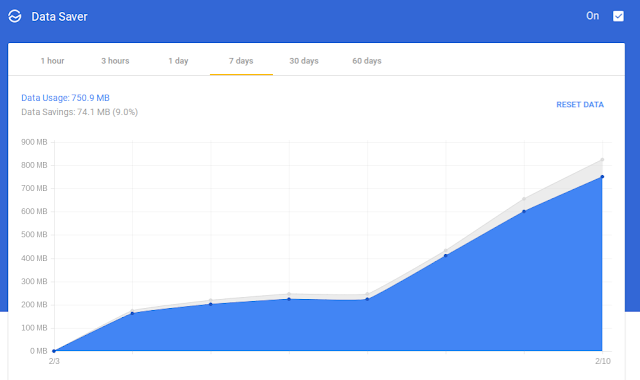
A Chrome extension  that I have used over the last couple of weeks is the Data Saver . According to Google, Chrome's Data Saver "reduces data usage by using Google servers to optimize pages that you visit." While it saves data, it also loads pages faster in some cases. During my use of it, I have noticed about 8-10% data savings. The image below shows my last 7 days usage on a Chromebook with Data Saver enabled (click image to enlarge). With Data Saver turned on, there may be some fuzziness to certain images or other minor issues. You can check out information about that here . The Data Saver is also available on Android devices through the Chrome app. While it is turned on an Android phone or tablet, it also turns on Chrome's Safe Browsing Technology  to help keep you safe online. The Data Saver is not available for iOS devices at this time. For me, the biggest benefit is that some pages load faster. According to my numbers on it, popular sites like Amazon ...

Tools for making great tutorials

Do you have a project that you need to SHOW your students where to click, drag, type, etc.?  You can make a tutorial "worksheet" that shows your step-by-step using screenshots.  If you have a smartphone you probably already are familiar with the process.  If you are on a computer (Windows or Chromebook or whatever) the process is different.  You may even want to edit out or condense some of the captured image before using it on your tutorial. Capturing an image from the screen to use on a document is easier than you would think.  This link is a great visual tutorial for you to see how to save something from your screen onto a document. www.take-a-screenshot.org The website has various tabs to correspond with the type of device you are using. What if you want to capture a video, not just an image?  Try using Jing:   www.techsmith.com/jing.html Now, go make a tutorial for your next project!

Undo Send in Gmail

Image
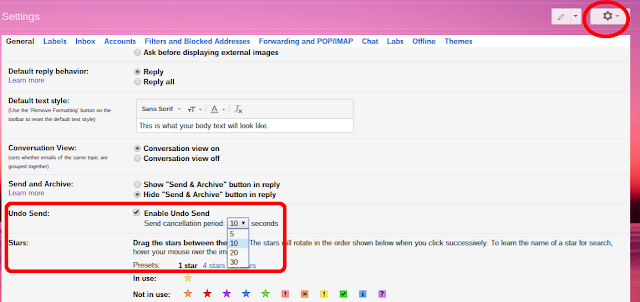
If you weren't aware of it, there is an Undo Send option in Gmail. Let's say you weren't quite ready to send that message out and wanted to retract it. This is the feature that will allow you to do that. To enable Undo Send: While in Gmail (Massac email) click the Gear icon, then click Settings. Scroll down to Undo Send. There is a check box to turn the feature on/off. You can then set the timer on this up to 30 seconds.  With Undo Send turned on, every email you send will have this message display. Dependent upon the amount of time you have selected in the settings, the Undo option will remain. If you click Undo, your message will not be sent. It will go back as a draft message for further editing or deletion.  Notes: The Undo Send feature is not available for the Gmail App (Android/iOS). If you have a personal Gmail account, Undo Send works if you use the Inbox by Gmail App. The Inbox App is not available for massac.org accounts.

Securly Blog: Web Filtering Anywhere

Check out the latest post from the Securly blog . It's a piece I wrote on " Web Filtering Anywhere "

Securly Blog: Web Filtering in K-12 Schools...

Check out the latest post from the Securly blog. It's a piece I wrote on " Web Filtering in K-12 Schools: The Past, Present, and Future "

Define in Google Docs

Image
One of the many handy items in Google Docs that I like to use is the "Define" tool. What does it do? By accessing the "Define" feature in Google Docs, it will tell you the type, pronunciation, various forms, definition, and synonyms of the word. In the example below I selected the word "quick". Over on the right, a box opens up and displays all of the information. How do I access it? There are a few ways to access "Define". Once you select your word you are wanting to look up, do one of the following: Right click your word and click Define 'your word' Click Ctrl+Shift+Y Click Tools in the Menu Bar and click Define It can be useful when writing, especially when you want to look up something about your word without leaving your document. Just a little tip to close out 2015. Have a Happy New Year!