Posts

Android Apps coming to Chrome OS

Image
As has previously been speculated, the official Google Chrome Blog had a post yesterday  detailing the arrival of Android Apps to Chrome OS (Chromebooks and the like). The first devices will see the arrival of the Google Play Store in mid-June, while others will follow suit later in 2016. Based on looking at the list of supported devices they currently have, it appears that a portion of our current Chrome devices will indeed support Android Apps. I would imagine that most new Chromebooks from here on out will also have support for this. This is definitely exciting news and it opens up a segment of applications not previously available to use.

Search Options in Gmail

Image
One of the powerful features of Gmail is the ability to search your messages. Even better is that you can be as concise or expansive with the search as you'd like. The search bar is conveniently located at the top of your inbox. If you click the down arrow in the search bar, you'll see that it expands to give you more options. You can search by time, subject, emails with attachments, or a number of other things. In that expanded box, you'll also see the link for creating a filter with the search that you are doing. There are even advanced search operators or query words that can be used in the search bar. If you are looking for that elusive email from 7 years ago, the search bar may do the trick!

Get them moving! Try a new technique

This time of the year (well, any time, actually) kids get a little squirrel-like.  They sometimes need a little active time in the day.  These are some activities that are adaptable to any level that gets the kinesthetic learner up and moving! A review game:   http://toengagethemall.blogspot.com/2013/02/grudgeball-review-game-where-kids-attack.html?m=0 Some flashcard games:   http://www.eslkidstuff.com/flashcardgamescontent.htm#.Vxof4tQgu1t activites:   http://learningabledkids.com/multi_sensory_training/page25-tactile2.htm

Rubric Help

There are many options for creating rubrics for your classroom, so why reinvent the wheel?  If you need inspiration for verbiage to use or if you have no idea where to start, get on over to Rubistar.   http://rubistar.4teachers.org/index.php Orange Slice is a Google extension which can help you create and then apply rubrics. https://chrome.google.com/webstore/detail/orangeslice-teacher-rubri/hfbffoacepkeklpippgijnoemfmiondo?hl=en-US Take it a step further. Create a rubric in Google Forms that grades itself and calculates the score on the scale you want. http://www.curbyalexander.net/2016/03/create-a-self-grading-weighted-rubric-with-google-forms/

Chrome's Data Saver

Image
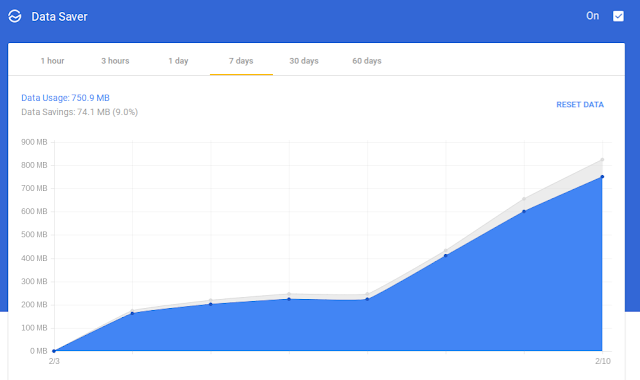
A Chrome extension  that I have used over the last couple of weeks is the Data Saver . According to Google, Chrome's Data Saver "reduces data usage by using Google servers to optimize pages that you visit." While it saves data, it also loads pages faster in some cases. During my use of it, I have noticed about 8-10% data savings. The image below shows my last 7 days usage on a Chromebook with Data Saver enabled (click image to enlarge). With Data Saver turned on, there may be some fuzziness to certain images or other minor issues. You can check out information about that here . The Data Saver is also available on Android devices through the Chrome app. While it is turned on an Android phone or tablet, it also turns on Chrome's Safe Browsing Technology  to help keep you safe online. The Data Saver is not available for iOS devices at this time. For me, the biggest benefit is that some pages load faster. According to my numbers on it, popular sites like Amazon ...

Tools for making great tutorials

Do you have a project that you need to SHOW your students where to click, drag, type, etc.?  You can make a tutorial "worksheet" that shows your step-by-step using screenshots.  If you have a smartphone you probably already are familiar with the process.  If you are on a computer (Windows or Chromebook or whatever) the process is different.  You may even want to edit out or condense some of the captured image before using it on your tutorial. Capturing an image from the screen to use on a document is easier than you would think.  This link is a great visual tutorial for you to see how to save something from your screen onto a document. www.take-a-screenshot.org The website has various tabs to correspond with the type of device you are using. What if you want to capture a video, not just an image?  Try using Jing:   www.techsmith.com/jing.html Now, go make a tutorial for your next project!

Undo Send in Gmail

Image
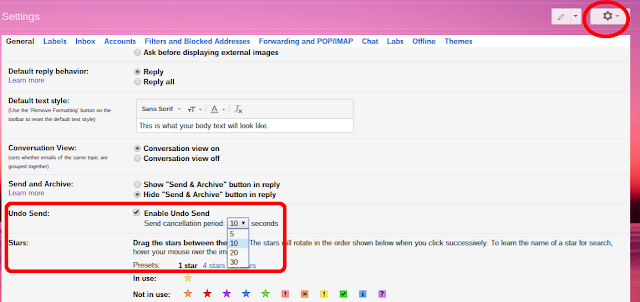
If you weren't aware of it, there is an Undo Send option in Gmail. Let's say you weren't quite ready to send that message out and wanted to retract it. This is the feature that will allow you to do that. To enable Undo Send: While in Gmail (Massac email) click the Gear icon, then click Settings. Scroll down to Undo Send. There is a check box to turn the feature on/off. You can then set the timer on this up to 30 seconds.  With Undo Send turned on, every email you send will have this message display. Dependent upon the amount of time you have selected in the settings, the Undo option will remain. If you click Undo, your message will not be sent. It will go back as a draft message for further editing or deletion.  Notes: The Undo Send feature is not available for the Gmail App (Android/iOS). If you have a personal Gmail account, Undo Send works if you use the Inbox by Gmail App. The Inbox App is not available for massac.org accounts.